

Imagine cranking up your favorite track and hearing that harsh, distorted hiss instead of the clean bass drop. That hiss is the classic sign of clipping, a silent saboteur that wrecks your car's soundstage if left unchecked.
Clipping happens when the amplifier tries to push more voltage than the power supply can deliver, forcing the waveform into a flattened shape that cuts off the peaks. The result is a loss of detail and, in the worst case, damage to your speakers.
Wire a 50-watt sub to a 30-watt amp and the amp cannot keep up. Every low-frequency thump turns into that grating sound. It is a textbook example of clipping in action.
Two main culprits trigger clipping: amp gain too high and speaker crossover settings that push the amplifier into hard‑drive. When you crank the gain knob beyond the amp’s headroom, the output stage has no choice but to chop off the waveform peaks.
You can spot clipping by listening for that sudden hiss or by visualizing the audio wave with a real‑time oscilloscope. If you see the waveform flattened, it’s a clear sign the amp is fighting its limits.
Here’s what to do: 1) Turn the gain back down until the clip indicator on the amp turns off, 2) Check that your crossover points match the speaker’s rating, and 3) Verify the power supply voltage stays within the amp’s spec. A simple test is to play a low‑pass tone, then watch the oscilloscope to see if it stays clean.
If you’re building a new system, consider using a DSP‑controlled amp where you can fine‑tune gain curves. For instance, Car Audio DSP: The Definitive Guide dives into how digital processing can smooth out peaks before they hit the amplifier.
And if you’re thinking about lighting upgrades to match your audio, the power draw can affect both systems. For tips on wiring high‑output LED fixtures safely, Outlook has a great guide that can keep your car’s electrical system humming without compromising your sound quality.
TL;DR
Clipping is when an amp pushes beyond its voltage limit, flattening peaks and sound - the hiss you hate when bass loses depth. Lower the gain, match crossovers to speaker specs, and use a DSP‑controlled amp to shape curves after the amp hits limits; these steps keep and protect your speakers.
Step 1: Recognize the Symptoms of Audio Clipping
When you crank up that track and suddenly hear that unmistakable hiss, you’ve just caught your amp flirting with clipping. It’s that moment where the clean thump turns into a scratchy, almost metallic noise that feels like the soundstage is breaking up. It’s a classic warning sign.
Clipping isn’t a fancy term - it’s just the amp pushing beyond its voltage limit. When the output stage can’t deliver the voltage the signal demands, it chops off the peaks, squishing the waveform into a flattened shape. That squish is the root of that hiss.
What you hear is the audible echo of that squished waveform. Think of it like pouring too much water into a glass - the excess spills over, distorting what you’re supposed to see. In audio, that spill translates to distortion that starts with a thin hiss and can grow into a nasty buzz.
You can spot clipping with your ears first. If the bass feels thin, the highs crackle, and there's that sudden hiss, you’re probably at the edge. But for a more definitive check, grab an oscilloscope or even a smartphone app that visualizes the wave. Flat tops on the graph? That’s clipping.
Clipping doesn’t just ruin the music; it can physically hurt your speakers. When the amplifier’s output is clipped, it pushes more power into the drivers than they’re rated for, turning the tweeters into overworked engines. Over time, that can mean warped cones or even blown diaphragms.
So how do we keep the hiss out? The first rule is simple: keep gain low enough that the signal never reaches the amp’s hard clip point. Turn that gain knob back until the clip indicator on the amp lights off or disappears. Don’t be tempted to crank it higher to chase more bass.
Next, make sure your crossover points match your speakers’ ratings. If you’re sending a 200Hz crossover to a sub that only handles 80Hz, you’re basically giving it a hard‑drive to chew on. That mismatch forces the amp to push harder, leading straight to clipping.
Sometimes you’re not the only culprit. Your vehicle’s electrical system can be a silent partner in the problem. A weak battery or aging alternator can’t keep up with a high‑output amp, so the voltage drops during loud passages. That drop forces the amp into clipping.
If you’re also upgrading your lighting, remember that LEDs draw more current when they’re bright. A lot of people use LED strips in their car, and if the lighting’s drawing a significant amount of power, it leaves less for the amp. A simple check: switch off the lights and listen. For a full LED lighting guide, visit LED Artistry.
For a visual reference, check out this quick demo that shows the wave shape before and after clipping. Notice how the peaks flatten and the signal looks like a truncated slice. It’s a clear visual cue that your amp is hitting its limits.
Now that you can spot the hiss, the next step is to dial things back. Adjust the gain, re‑set the crossovers, and make sure your power supply is healthy. If you’re still hearing that hiss, consider adding a DSP‑controlled amp that trims the peaks before they reach the hard‑drive. You can also print a quick wiring diagram with JiffyPrint online for visual reference.
Remember, spotting clipping early means you can protect your gear and keep the sound crisp. Keep those gains in check, match crossovers, and make sure your power’s stable. And if you’re still stuck, reach out to us - we’ve seen this problem in countless setups.

Step 2: Measure Clipping Levels with the Right Tools
If you’ve already spotted the hiss and know it’s clipping, the next move is to quantify it. You can't fix what you can't see. That’s why we’re going to walk through the exact tools you need.
Why You Need a Test Setup
A decent scope needs at least 20 MHz bandwidth and 20 MS/s sampling. That gives you enough detail to spot a tiny flat‑top that signals clipping. Budget models hit those specs for under $200.
Pick the Right Scope
Grab an oscilloscope-your window into the audio chain. It shows the waveform before it hits the speakers.
Set Up an Oscilloscope for Clean Gains
Connect the probe to the amp output or head‑unit RCA line. Ground the clip to the chassis ground to avoid phantom noise.
Start with a Sine Tone
Next, play a pure sine tone at low volume. Keep EQ flat and disable dynamic features. The scope should display a perfect rounded wave.
Find the Clipping Threshold
Now, crank the volume up slowly while watching the screen. The first flattening of peaks marks the clipping point; drop back a notch or two.
Use an RTA for Frequency Balance
Set the RTA to pink‑noise input, which has equal energy across octaves. Play it at 80‑90 dB and look for a flat curve. Peaks that climb above the rest might indicate clipping.
Measure Loudness with an SPL Meter
Combine oscilloscope, RTA, and SPL meter to see waveform, frequency response, and loudness. Cross‑check the three for consistency.
Adjust Gain Safely
Now, let’s talk about setting the gain properly. Once you’ve identified the clean max on the scope, set the amplifier’s gain so that the average output sits a few decibels below that point. That buffer protects the drivers during peak transients.
Run a Frequency Sweep
After setting the gain, run a quick frequency sweep. Play a series of tones from 20 Hz to 20 kHz. Watch the oscilloscope for each tone; if any look flattened, you’re still clipping at that frequency. Adjust the crossover or DSP accordingly.
Watch for Power Supply Sag
Remember that power supply sag can also cause clipping. Measure the DC voltage at the amp input while running a heavy bass track. A drop below the amp’s spec indicates the supply is struggling.
Remember, regular testing saves time and money-spotting clipping early means you avoid costly repairs and keep your audio experience pristine for your car every time.
Keep a Log
Finally, keep a log of your readings. Note the clean max volume, the corresponding dB SPL, and any frequency anomalies. When you tweak the system later, you’ll know exactly what changed.
Quick Checklist
In short, measuring clipping is just a systematic check using the right tools. Oscilloscopes, RTAs, and SPL meters work together to give you the data you need to keep your system clean and powerful.
Want More Details?
If you’re looking for a deeper dive into how to set up each tool, see MotorBeast’s guide on testing car audio systems.
Final Thought
With these measurements in hand, you’ll be able to dial in your gain, crossover, and DSP settings with confidence, knowing that every peak is safe and every bass thump stays true. Ready to pull out the tools? Grab your scope, set up your RTA, hit the SPL meter, and let the numbers guide you to that sweet spot where clarity meets power. Enjoy crisp, distortion‑free sound everywhere today.
Step 3: Fix Clipping by Adjusting Gain and Signal Path
Okay, we’ve identified the hiss. Now it’s time to yank the reins and pull the amp back from the brink.
Start With the Right Signal
Before you even touch the gain knob, make sure your head‑unit is humming at a clean level. Turn every equalizer to neutral, disable bass‑boost, and set the unit’s volume to about 75 % of its max. That’s the sweet spot where the source can deliver a strong, undistorted waveform without already pushing the amp into trouble.
Set the Gain the Smart Way
Begin with the amplifier’s gain dial at its lowest setting. Grab a simple 1 kHz sine wave or a clean audio track-anything that stays flat. Play it back, and slowly lift the gain until you hear the first hint of distortion. At that point, dial it back one notch. That buffer gives you room for transient peaks during a guitar solo or a snare hit.
Why the notch? Because each step on many amps translates to roughly 3 dB. By backing off a single notch you’re keeping the amp about 3 dB below its clipping threshold. It might feel like you’re cutting the volume, but the clarity you gain is worth every watt.
Fine‑Tune with DSP and Cross‑Over
Many installers use a DSP to shape the signal before it hits the amp. A well‑placed limiter can clamp the waveform right at the amplifier’s input, preventing the drive stage from ever seeing a peak that would cause clipping. If you’re using a DSP, set the limiter threshold to about 3 dB below the gain‑set point you just dialed.
Cross‑overs are another lever. If your subwoofer is getting a low‑frequency flood it can’t handle, the amp will choke and clip. Move the crossover point up a couple of octaves-say from 80 Hz to 100 Hz-and watch the oscilloscope. If the flat‑top disappears, you’ve found a better match.
Watch the Power Supply
Clipping isn’t only about the amp’s headroom; it can also stem from a sagging battery or alternator. Hook up a multimeter to the amp’s DC input while blasting a heavy bass track. If the voltage dips below the amp’s minimum rail-often around 12.5 V on a 12 V system-you’re feeding the amp a starving brain.
In that case, upgrade the battery, add a higher‑current alternator, or install a dedicated sub‑woofer power supply. These changes keep the rail steady and give the amp the juice it needs to stay clean.
Checklist to Keep the Clipping at Bay
- Head‑unit set to 75 % volume, EQ flat, no bass‑boost.
- Amplifier gain at minimum, increase until first distortion, back off one notch.
- DSP limiter threshold 3 dB below gain‑set point.
- Crossover point moved up if sub‑woofer overload is suspected.
- DC rail voltage stable above 12.5 V during heavy listening.
- All wiring tightened and grounded; no frayed cables.
- Re‑measure after each change to confirm the waveform remains clean.
Think of the amp as a careful chef. If you give it too much raw material-too much volume or a jagged waveform-it’ll burn the dish. By giving it just the right amount of seasoning (gain), a safety net (DSP limiter), and a solid stove (stable power supply), you let the chef do what they do best: serve a flawless meal.
Remember, the goal isn’t to silence the hiss entirely at the expense of soundstage; it’s to keep the peaks pristine while still letting your bass thump and your mids sing. Follow these steps, log the numbers, and you’ll have a system that sings, not screams.
For a deeper dive into the science behind clipping and how to guard against it, check out the engineer fix guide on clipping prevention.
Step 4: Use a Video Tutorial to Visualize Clipping Prevention
First off, let’s settle the premise: if you’re still guessing where the peaks are getting chopped, a visual guide can make the whole process feel like a walk in the park.
We’re not here to hand you a VHS tape. Instead, think of a short clip that shows a real‑time oscilloscope, a sine wave, and a clear “flat‑top” indicator. Watching it unfold can be the light‑bulb moment that turns abstract theory into hands‑on know‑how.
So, how do you pick the right video? Start by looking for content that uses a scope you can replicate-ideally a 20 MHz model, the same one we recommend for home setups. A good tutorial will walk through setting up the probe, turning on the correct vertical scaling, and interpreting the waveform while a low‑pass tone plays.
When you’re scrolling through the options, keep an eye out for the following cues:
- Step‑by‑step captions: Each move should be broken down, no rush.
- Clear audio: You should hear the same low‑pass tone you’ll use in your own rig.
- Practical tips: Look for advice on adjusting the gain knob, noticing the clip indicator, and backing off a notch.
Once you’ve chosen a video, pause after the demo of the scope. Record the exact gain setting, then re‑play it with your own system. That “re‑play” trick is the secret sauce for transferring visual confidence into real‑world tweaks.
Step 1: Set Up Your Scope
Ground the scope to the same chassis ground the amp uses, then plug the probe into the amp’s output or the head‑unit line‑out. Use a 10:1 ratio for most amps; if the scope is 1:1 you’ll see a full‑scale waveform that’s easier to read.
Step 2: Run a Clean Sine Tone
Play a 1 kHz sine tone at a moderate volume. The scope should show a perfect sine curve-no bumps, no spikes. That’s the “healthy” baseline you’ll compare against later.
If the waveform already looks flat or distorted, double‑check the source and make sure no DSP is pre‑processing the signal.
Step 3: Identify the Clipping Point
With the scope set, slowly crank up the volume while watching the waveform. When the peaks flatten-that’s your clipping threshold.
Step 4: Set a Safe Gain Buffer
Mark that spot, note the gain setting, then back off the knob a notch. That buffer keeps the amp safe from distortion.
Step 5: Validate with Your Own Track
Run your favorite track through the same setup, watch the scope. If peaks stay below the line, you’ve nailed it.
Step 6: Fine‑Tune Volume Adjustments
Once confident, raise volume gradually, watching the scope. If peaks touch the top again, back off the gain or tweak the crossover.
Step 7: Keep a Quick Reference Sheet
Write down the gain setting, scope scaling, and DSP threshold. Keep this sheet handy for future upgrades or speaker swaps.
Step 8: Keep the Clipping Map Handy
Remember, a video tutorial is just the map. Your hands, scope, and patience are the real tools that keep clipping at bay.
Step 9: Master Clean, Powerful Sound
By turning a visual lesson into a repeatable routine, you’re not just preventing distortion-you’re mastering clean, powerful sound.
Keep a quick checklist handy: gain, scaling, limiter threshold, crossover settings. A few minutes of tuning can save you a trip to the repair shop.
Now grab that scope, hit play, and let the waveform guide you to sonic perfection.
Step 5: Optimize Head Unit Settings to Avoid Clipping
Let’s get into the guts of your head unit - the command centre that feeds the amp. If you’re seeing clipping even after tightening gain on the amp, it’s probably time to look where the signal is born.
Why the Head Unit Matters
Think of the head unit as a coffee grinder. If you grind too coarse, the coffee tastes flat. Too fine, it’s bitter and over‑extracted. The same with audio - a head unit that’s too loud or has a sloppy signal can push the amp over its limit.
Step 1: Check the Source Volume
Start by turning the head unit volume down to 50 %. That gives you a clean, undistorted signal to work with. Then pull the volume back up to the level you normally use, and notice if the amp’s clip LED lights up. If it does, you’re already sending a fat signal.
Step 2: Tidy Up the EQ
Drop every EQ knob back to its neutral setting - 0 dB. Many users forget that a little boost on the highs or a bass‑boost can send a surge straight into the amp. A flat EQ is a clean slate.
Step 3: Disable Built‑In Enhancements
Some head units ship with “Dynamic Volume” or “Bass Boost” turned on by default. Turn those off. They’re great for casual listening but a nightmare for precise tuning.
Step 4: Inspect the Digital Signal Path
If your unit has a digital output (like HDMI‑ARC or a high‑res audio port), try switching to the analog RCA line‑out. Digital paths can introduce compression that the amp hates.
Step 5: Use the Head Unit’s Gain Control
Most units have a head‑unit gain knob. Set this to the lowest setting and then raise it until you hear the first faint hint of distortion. Back it off a notch - that gives you a margin of safety before the amp starts chopping peaks.
Step 6: Match the Head Unit to the Amp’s Input
Check the amplifier’s recommended input level. If it says 0‑20 VDC and your head unit can push 30 V, you’re overshooting. Add a small inline attenuator or re‑wire the input to match.
Step 7: Keep the Head Unit Cool
Heat can change an amplifier’s behavior. Ensure your head unit has good airflow. A hot unit can reduce its effective headroom, making clipping more likely.
Mini‑Checklist Before You Hit the Road
- Head unit volume at 50 % - test for clipping.
- All EQ knobs at 0 dB.
- Built‑in enhancements turned off.
- Analog output used instead of digital.
- Head‑unit gain set to just below distortion.
- Input level matches amp spec.
- Head unit well‑ventilated.
When you’re done, play a bass‑heavy track, watch the oscilloscope, and see if any peaks hit the top. If they don’t, you’ve successfully nudged your head unit into the sweet spot. If they still do, the problem might be higher up the chain - perhaps the amp itself needs a new gain setting or the speakers need a new crossover.
Remember, your head unit is the first gatekeeper. Tuning it right saves you a lot of headaches down the road, keeps your speakers happy, and lets you enjoy that deep, clean bass without the nasty hiss.
For a deeper dive into head‑unit optimization, the Audio lover guide on how to stop clipping in car audio is a solid next step.
Step 6: Compare Common Clipping Scenarios in a Quick Table
We’ve already walked through the nuts and bolts of why clipping happens, but seeing it side‑by‑side makes it easier to spot and fix.
Ever tried to chase a problem and ended up guessing at the culprit?
Below, we lay out three everyday clipping scenarios, the tell‑tale symptoms, and the quick wins you can apply right away.
First up: the “High‑Gain, Low‑Power” trap.
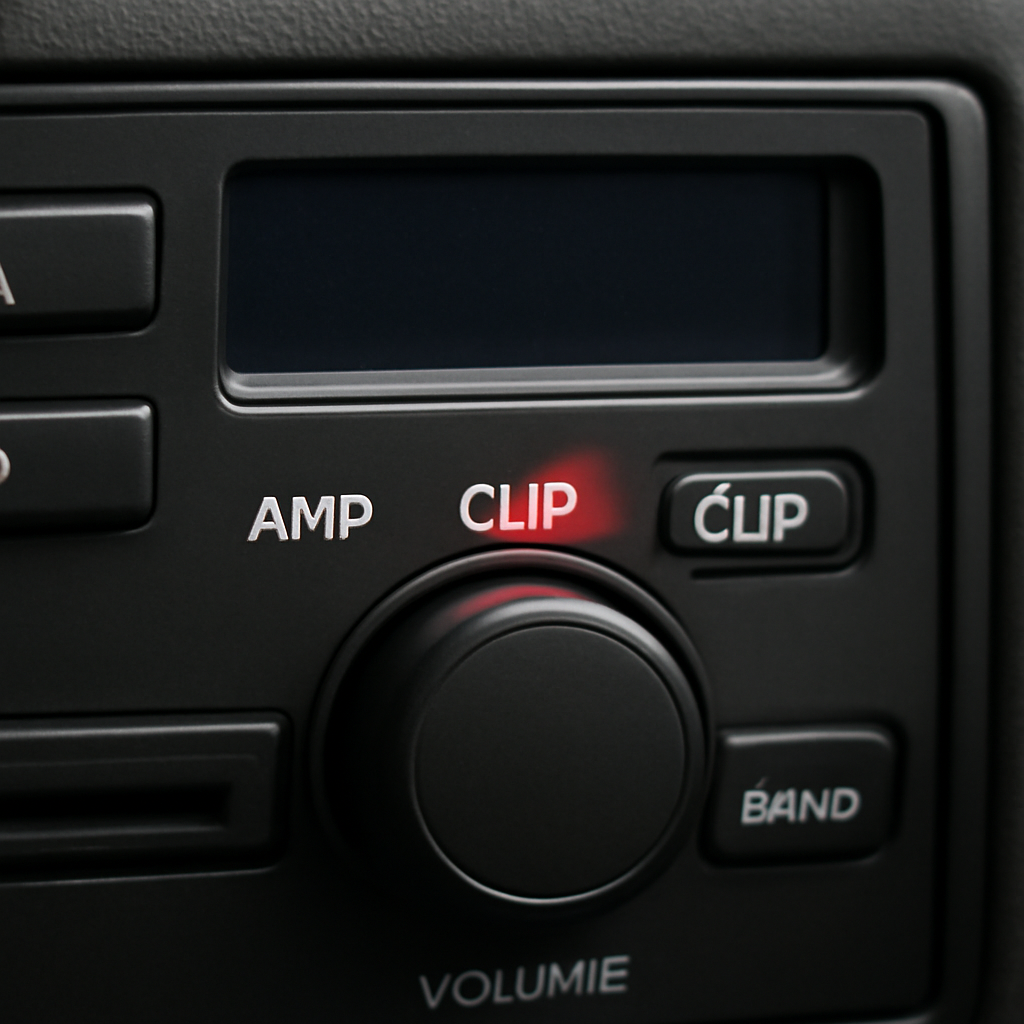
After the image, let’s dive into the table that maps each scenario to clear actions.
| Scenario | Typical Cause | Symptoms You’ll Hear | Fast Fix |
|---|---|---|---|
| High‑Gain, Low‑Power | Amplifier set too high for its wattage and input voltage. | Metallic hiss, sudden distortion when hitting a bass drop. | Drop the gain knob until the clip LED turns off, then back off one notch. |
| Sub‑Woofer Over‑Drive | Cross‑over sends more low‑frequency energy than the sub can absorb. | Boomy bass that feels more rumble than punch. | Raise the crossover frequency a couple of octaves or add a dedicated sub‑power supply. |
| Power‑Supply Sag | Vehicle battery or alternator can’t keep up during heavy listening. | Gradual loss of volume, occasional clipping bursts, and a weak high‑frequency presence. | Check the DC rail with a multimeter; upgrade to a higher‑current alternator or add a battery isolate. |
| DAC Compression | Head unit digital output with compression or limited headroom. | Soft mids, sudden hiss, loss of punch even at 50% volume. | Switch to analog output or adjust digital output settings. |
Notice how each fix is a small tweak that keeps the amplifier from hitting the dreaded flat‑top.
Now, imagine you’re in the middle of a road trip, the music’s pumping, and you catch that hiss. Instead of pulling the plug, you’ll know whether you need to turn down gain, tweak the crossover, or beef up the power supply.
Here’s a quick checklist to keep in mind whenever you suspect clipping:
- Check the head‑unit gain and set it just below distortion.
- Verify the crossover point matches your sub’s rating.
- Measure the DC rail voltage while blasting a bass‑heavy track.
- Use an oscilloscope or a good RTA to confirm the waveform is clean.
Remember, clipping isn’t a mysterious beast - it’s just the system’s way of saying it’s being asked to do more than it can safely do.
So, what’s your next step? Pick the scenario that matches your symptoms, grab the table as a quick reference, and make the tweak that keeps your ride sounding pure.
Another sneaky culprit is the head unit’s own digital output. When the DAC compresses the signal, the amp gets a squashed waveform that can clip even at moderate volumes.
If you’ve got a premium sub like ours, the same rules apply. The amplifier’s headroom is only as good as the input signal, so keep everything clean from source to speaker.
When you’re fine‑tuning, always keep the oscilloscope handy. A clean waveform is a visual green light that you’re not pushing the amp past its limits.
Remember, the goal is to hear the music, not the warning lights. Use the table as a cheat sheet whenever you hear that hiss.
Take one tweak at a time-change the gain, then check the scope, then move to the crossover. Small adjustments add up to a huge difference.
So, if that hiss pops up again, you’ve got a clear path: identify the scenario, apply the fix, and enjoy the deep, distortion‑free bass you deserve.
FAQ
What exactly is clipping in car audio?
Clipping happens when the amp is asked to push more voltage than the power supply can give, so the peaks of the waveform get flattened. The result is a harsh hiss or metallic growl that ruins the music. Think of it as the amp saying, “I can’t keep up” and chopping the peaks to stay alive.
Why does my subwoofer start to sound muddy when the volume rises?
That’s a classic sign of clipping. When the amp can’t handle the transients, the low‑frequency peaks get cut, so the sub can’t reproduce the punchy thumps. The result is a muddy thump that feels like it’s stuck in a fog, not the clean boom you want.
How can I tell if the head unit’s digital output is causing clipping?
Digital outputs often compress the signal to stay within a limited headroom. If you notice sudden hiss even at 50% volume, switch to the analog RCA line‑out. If the hiss disappears, the digital path was squeezing the waveform before it reached the amp.
Is there a way to protect my speakers from damage when clipping occurs?
Yes. Keep the amplifier’s clip indicator off and back the gain knob a notch before the first distortion. Using a DSP limiter set about 3 dB below the amp’s clipping point adds a safety net. That way, the speakers never see a waveform that could overdrive them.
What’s the role of a crossover in preventing clipping?
A crossover can push too much low‑frequency energy into a sub that can’t handle it, forcing the amp to choke. Raising the crossover point by a couple of octaves-say from 80 Hz to 100 Hz-lets the sub sit in its sweet spot and keeps the amp from over‑driving.
Can power‑supply sag trigger clipping even when the gain is set right?
Definitely. If the battery or alternator can’t maintain the 12.5 V rail while blasting heavy bass, the amp starves and starts clipping. Measure the DC rail during a track; if it dips, upgrade the alternator or add a dedicated sub‑power supply to keep the voltage steady.
What’s the best quick fix if I hear a sudden hiss during a drive?
First, lower the head unit’s source volume and reset the EQ to flat. Then reduce the amp gain until the clip LED turns off, then back off one notch. If the hiss persists, check the crossover and make sure the power rail is stable. A few small tweaks usually bring the hiss to zero.
Conclusion
We’ve been cruising through the maze of clipping together, and I hope you’re already feeling a little more confident about spotting that nasty hiss before it turns your ride into a noisy mess.
Remember the three main culprits: a hard‑knob gain, a low‑cut crossover that over‑feeds the sub, and a sagging power rail that can’t keep up with a bass‑heavy track. Fixing one usually solves most headaches, but a quick checklist keeps you on track.
First, set your head‑unit gain just shy of distortion and keep the EQ flat. Second, bump your crossover a couple of octaves if the sub starts sounding mushy. Third, grab a multimeter and watch the DC rail while blasting a heavy track - if it dips, you’re in need of a higher‑current alternator or dedicated sub supply.
Once those basics are nailed, the only thing left is to trust the waveform. A clean, rounded wave is a green light; a flattened top is a red flag.
So, what’s the next move? Take a quick scope run, jot down the safe gain point, and set a DSP limiter about three decibels below that threshold. That buffer keeps the amp and speakers happy, even when you hit the pedal to the metal.
Enjoy crisp, distortion‑free sound and the confidence that comes from knowing exactly what is clipping in car audio and how to stop it. Clipping that survives a correct gain setting is usually an amplifier out of headroom rather than a tuning mistake, and the car amplifiers we stock list RMS power per channel so you can size one against the speakers you already own.


